Publish and manage your quizzes
Publish and unpublish quizzes, find them, rename them, duplicate them and delete the ones you no longer need.
 Attravo TeamUpdated 1 min read
On this page
The Quizzes page lists every quiz in your store, and the quiz editor's title bar publishes and unpublishes them. Only published quizzes show on your store.
Publish or unpublish a quiz
- Open the quiz.
- Select Publish. To take a published quiz off your store, select Unpublish.
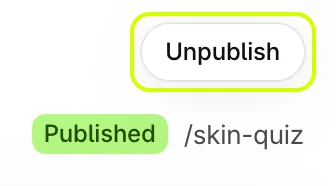
Publishing and unpublishing also save any changes you haven't saved yet.
On the Free plan, one quiz can be published at a time. Publishing a second shows Not published with a link to the plans. See Choose a plan.
Find a quiz
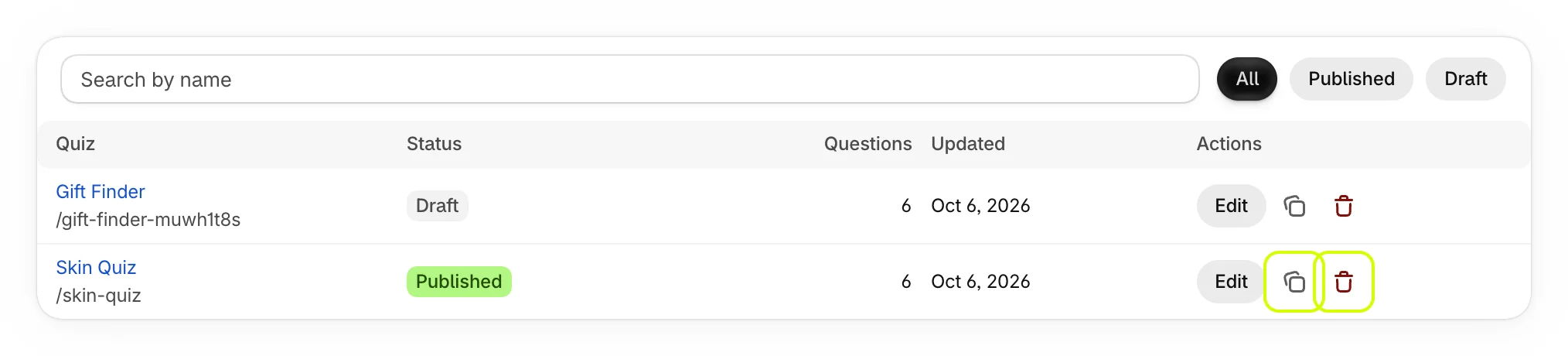
Open Quizzes. Search by name, or choose All, Published or Draft.
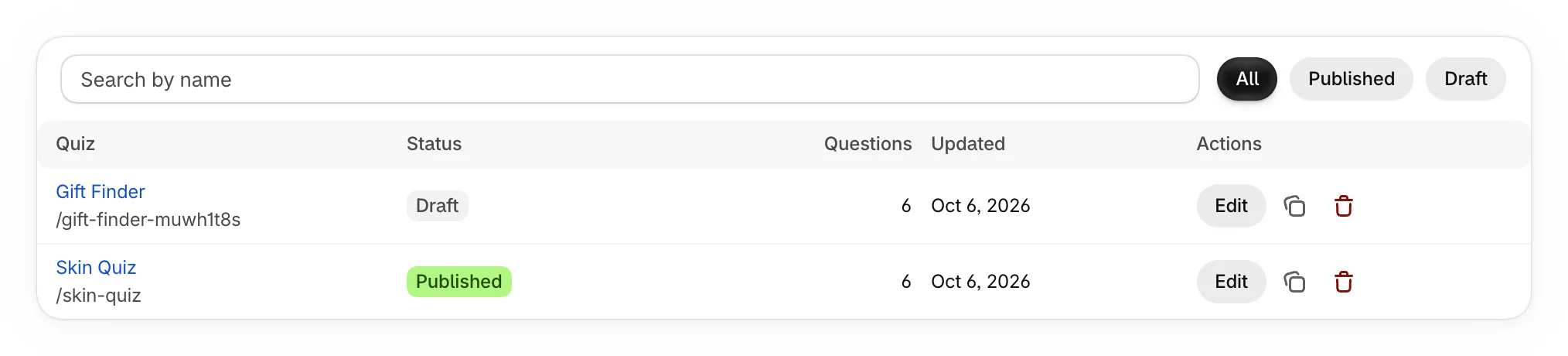

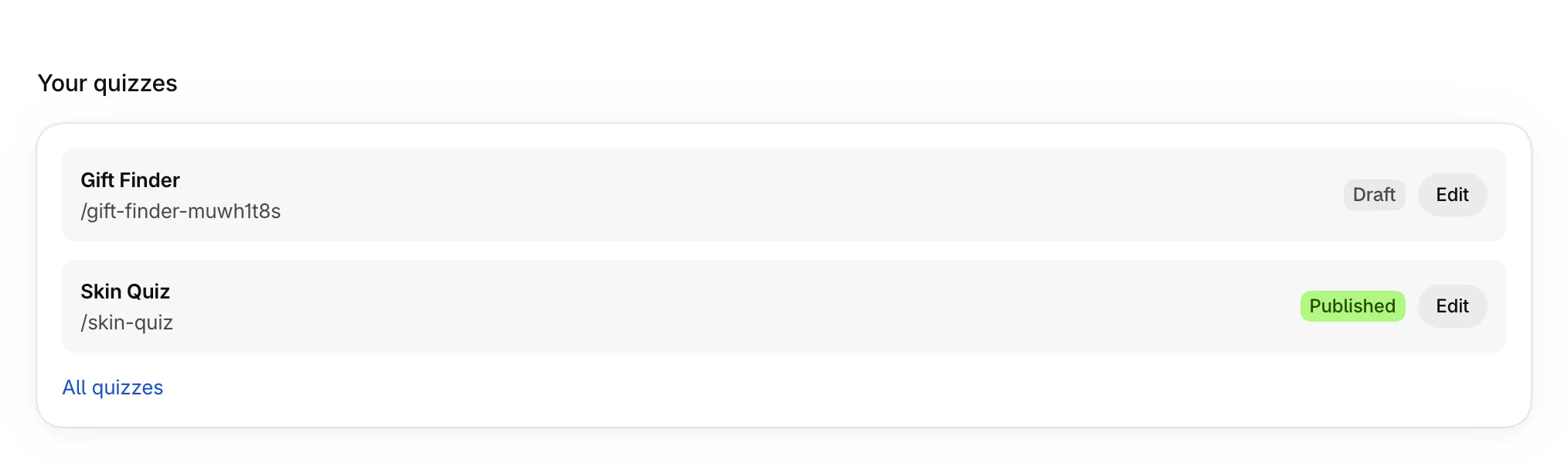
Each row shows the quiz's handle, status, number of questions and when it was last updated, in your store's time zone. Home also lists your five most recently edited quizzes, with Edit on each.
Rename a quiz or add a note
- Open the quiz and select Settings.
- Change Name, or add a Note, such as who the quiz is for. Only your team sees these.
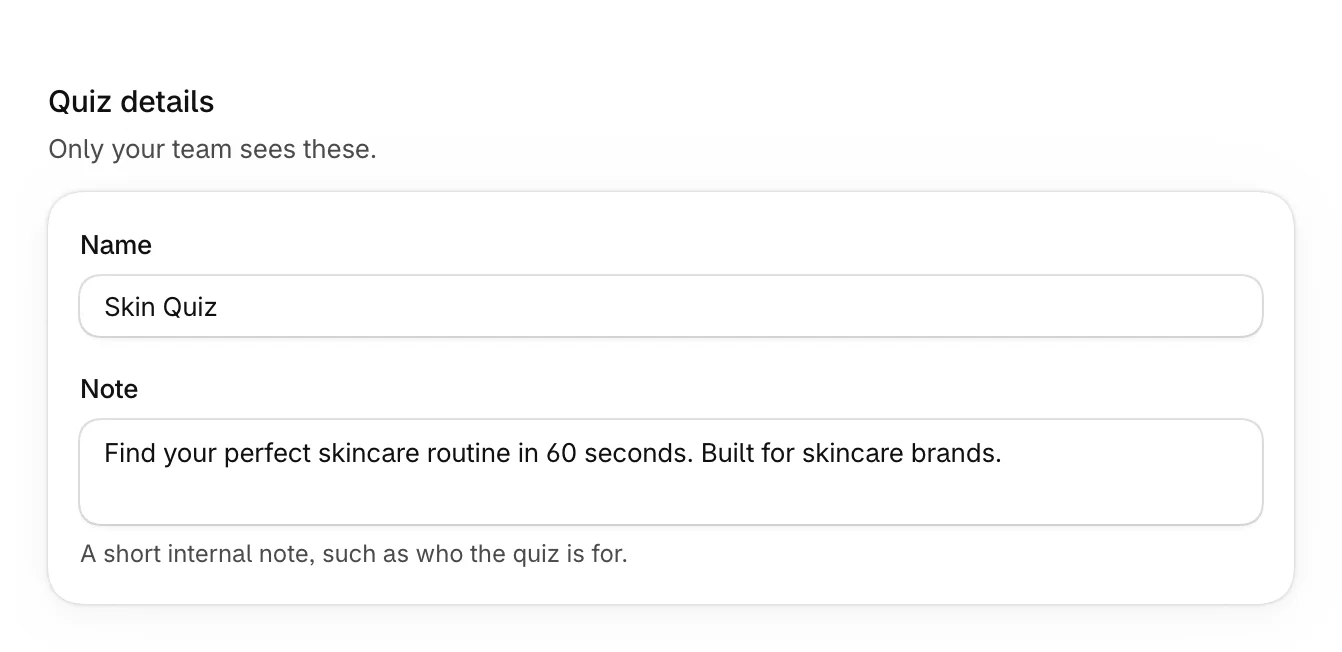
- Select Save.
Duplicate a quiz
On Quizzes, select the duplicate button on a quiz's row. A copy named "(copy)" opens as a draft, with a new handle, ready to change.
On the Free plan, a copy counts as a second quiz, so the button opens Plans instead.
Delete a quiz
- On Quizzes, select the delete button on the quiz's row.
- Select Delete quiz to confirm.
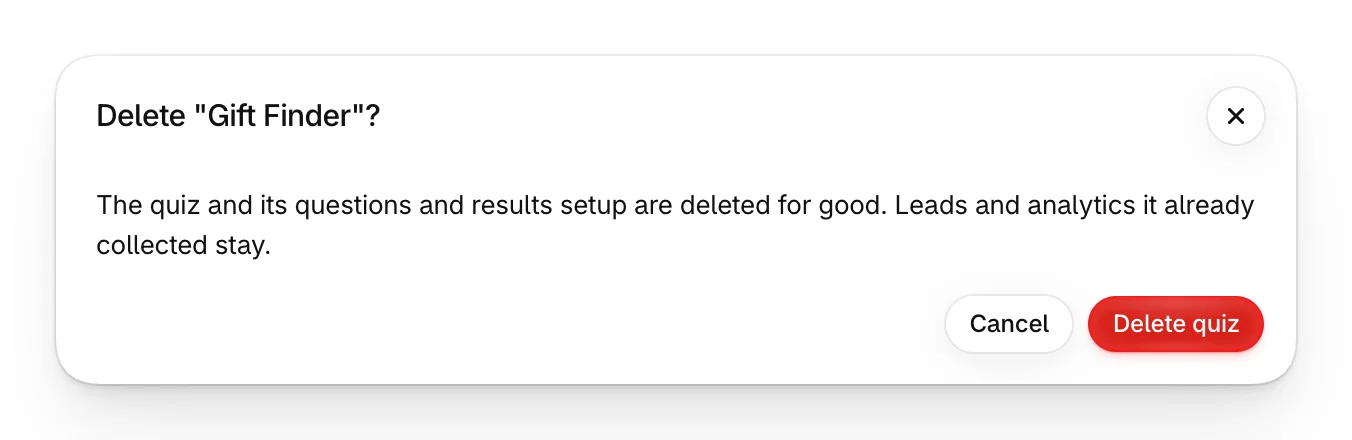
The quiz, its questions and its results setup are deleted for good. The leads and analytics it already collected stay, and its orders still count in your totals.
Was this helpful?
More in Build your quiz
- Start from a templatePick one of four ready-made quizzes, or start blank, and see what each template sets up for you.
- Add and edit questionsAdd questions, choose their type, write them, and move, copy or delete them.
- Set up answers and tagsWrite answers, tag them to match your products, add education boxes and choose how answers look.
- Show a question only after certain answersAdd rules so a question appears only when earlier answers match, and skip the questions that don't apply.